Sometimes Steam needs to be reinstalled due to client errors, update issues, or the store not working properly. When uninstalling the program normally, it may remove not only its own files but also installed games. To avoid downloading them again, you need to save the steamapps folder beforehand.
Can You Uninstall Steam and Keep Your Games?
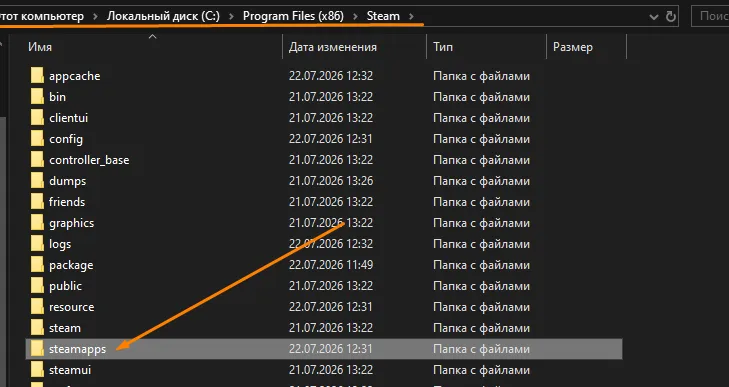
Yes, you can keep your installed games. The main game files are located in the following folder:
C:\Program Files (x86)\Steam\steamapps
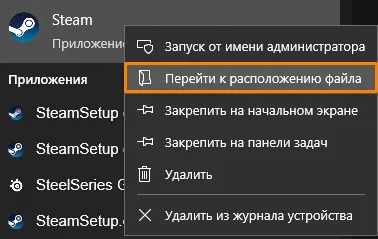
The easiest way to find its location is to right-click the Steam shortcut and select “Open file location”. This will open the folder where the client is installed.
Before uninstalling Steam, move the steamapps folder to another location, such as another drive or your desktop. Official Steam Support warns that uninstalling the client normally may also remove all installed game content.
How to Uninstall Steam Without Deleting Games
1. Completely Close Steam
Click Steam → Exit and make sure the program is no longer running in the background. If necessary, open Task Manager and end the Steam processes.
2. Find the Steam Folder
The easiest way to find where Steam is installed:
- Find the Steam shortcut on your desktop or in the Start menu.
- Right-click it.
- Select “Open file location” (the wording may differ depending on your version of Windows).
Start menu
3. Copy the steamapps Folder
Find the steamapps folder and move it outside the Steam directory. For example:
D:\Steam Backup\steamapps
This folder contains most of the installed game files. It is also recommended to save the userdata folder, as it may contain local settings, screenshots, and some user data.
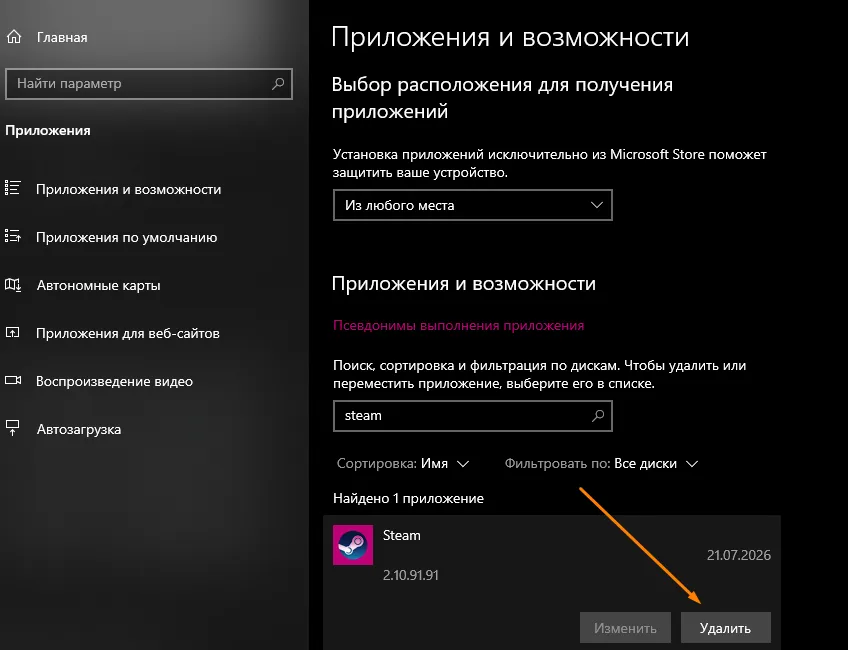
4. Uninstall Steam
Open the following section in Windows:
Settings → Apps → Installed apps → Steam → Uninstall
Once the uninstall process is complete, make sure the saved steamapps folder is still in place.
How to Reinstall Steam Without Downloading Games Again
Download and install Steam. After installation, completely close the client and move the saved steamapps folder back into the Steam directory:
C:\Program Files (x86)\Steam\steamapps
If Windows asks whether you want to merge or replace folders, confirm the action.
Then launch Steam and sign in to your account. Most games should automatically appear in your library as installed.
What to Do If Steam Does Not Detect Installed Games
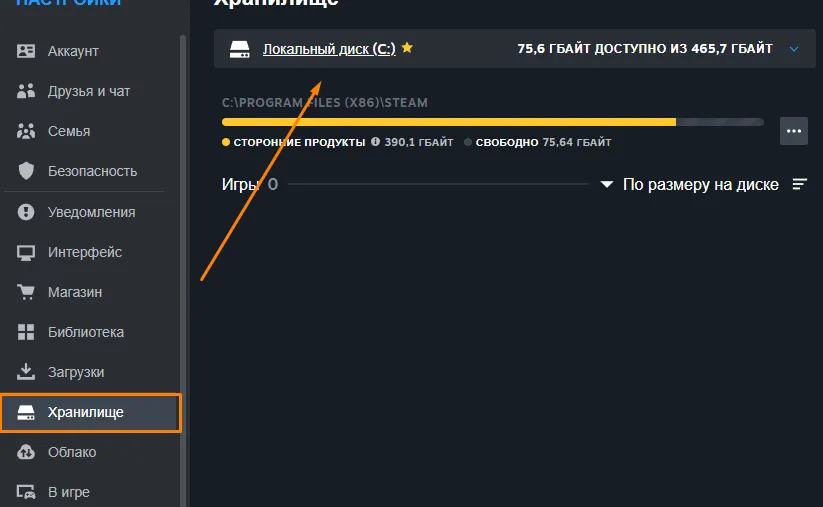
If your games are shown as not installed, open:
In the upper-left corner of Steam → Settings → Storage
Add the drive or folder containing the saved Steam library. After adding the existing folder, the client should detect the installed games.
You can also click “Install” next to the required game and select the folder where its files are already located. Instead of downloading the entire game, Steam will verify the existing data and download only missing or corrupted files.
How to Verify Game Files After Reinstalling Steam
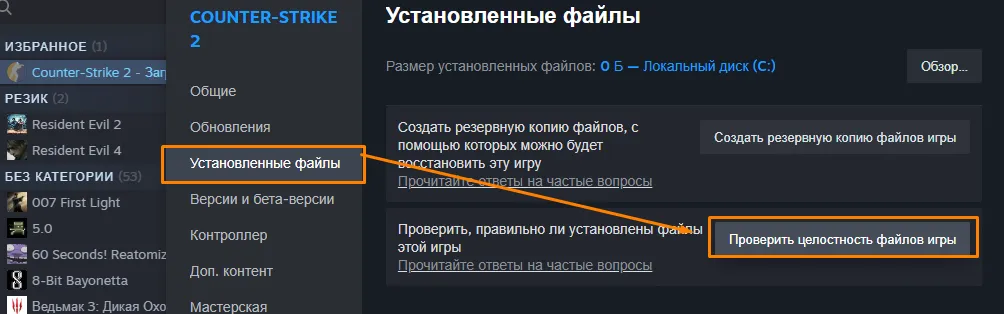
If a game does not launch or Steam tries to download some of its files again:
- Right-click the game.
- Select “Properties”.
- Open the “Installed Files” section.
- Click “Verify integrity of game files”.
Steam will check the game folder and restore any missing files if necessary.
Will Game Saves Be Preserved?
It depends on the specific game. If a game supports Steam Cloud, your saves will usually be downloaded after you sign in to your account.
However, some games store save files locally in the following folders:
C:\Users\Имя пользователя\Documents\My Games
C:\Users\Имя пользователя\AppData\Local
C:\Users\Имя пользователя\AppData\Roaming
Therefore, it is recommended to back up important save files separately before reinstalling Steam. Their location depends on the developer of the specific game.
Can You Simply Install Steam Over the Existing Version?
If your goal is to fix client errors, you do not necessarily need to uninstall Steam first. Official Steam Support recommends downloading the installer and installing the program into the same folder. In this case, installed games will usually be preserved. Uninstalling the client normally, however, may remove game content.
Conclusion
To uninstall Steam without losing your games, move the steamapps folder to a safe location before uninstalling the client. After reinstalling Steam, move it back and add the library through the storage settings if necessary. This will preserve your installed games and prevent you from having to download them again.

How to download and install Steam on PC (Windows, Mac OS)
Sometimes Steam needs to be reinstalled due to client errors, update issues, or the store not working properly. When uninstalling the program normally, it may remove not only its own files but also installed games. To avoid downloading them again, you need to save the steamapps folder beforehand.
Can You Uninstall Steam and Keep Your Games?
Yes, you can keep your installed games. The main game files are located in the following folder:
C:\Program Files (x86)\Steam\steamappsThe easiest way to find its location is to right-click the Steam shortcut and select “Open file location”. This will open the folder where the client is installed.
Before uninstalling Steam, move the steamapps folder to another location, such as another drive or your desktop. Official Steam Support warns that uninstalling the client normally may also remove all installed game content.
How to Uninstall Steam Without Deleting Games
1. Completely Close Steam
Click Steam → Exit and make sure the program is no longer running in the background. If necessary, open Task Manager and end the Steam processes.
2. Find the Steam Folder
The easiest way to find where Steam is installed:
Start menu
3. Copy the steamapps Folder
Find the steamapps folder and move it outside the Steam directory. For example:
D:\Steam Backup\steamappsThis folder contains most of the installed game files. It is also recommended to save the userdata folder, as it may contain local settings, screenshots, and some user data.
4. Uninstall Steam
Open the following section in Windows:
Settings → Apps → Installed apps → Steam → Uninstall
Once the uninstall process is complete, make sure the saved steamapps folder is still in place.
How to Reinstall Steam Without Downloading Games Again
Download and install Steam. After installation, completely close the client and move the saved steamapps folder back into the Steam directory:
C:\Program Files (x86)\Steam\steamappsIf Windows asks whether you want to merge or replace folders, confirm the action.
Then launch Steam and sign in to your account. Most games should automatically appear in your library as installed.
What to Do If Steam Does Not Detect Installed Games
If your games are shown as not installed, open:
In the upper-left corner of Steam → Settings → Storage
Add the drive or folder containing the saved Steam library. After adding the existing folder, the client should detect the installed games.
You can also click “Install” next to the required game and select the folder where its files are already located. Instead of downloading the entire game, Steam will verify the existing data and download only missing or corrupted files.
How to Verify Game Files After Reinstalling Steam
If a game does not launch or Steam tries to download some of its files again:
Steam will check the game folder and restore any missing files if necessary.
Will Game Saves Be Preserved?
It depends on the specific game. If a game supports Steam Cloud, your saves will usually be downloaded after you sign in to your account.
However, some games store save files locally in the following folders:
C:\Users\Имя пользователя\Documents\My GamesC:\Users\Имя пользователя\AppData\LocalC:\Users\Имя пользователя\AppData\RoamingTherefore, it is recommended to back up important save files separately before reinstalling Steam. Their location depends on the developer of the specific game.
Can You Simply Install Steam Over the Existing Version?
If your goal is to fix client errors, you do not necessarily need to uninstall Steam first. Official Steam Support recommends downloading the installer and installing the program into the same folder. In this case, installed games will usually be preserved. Uninstalling the client normally, however, may remove game content.
Conclusion
To uninstall Steam without losing your games, move the steamapps folder to a safe location before uninstalling the client. After reinstalling Steam, move it back and add the library through the storage settings if necessary. This will preserve your installed games and prevent you from having to download them again.
Play Assassin's Creed Black Flag Resynced Deluxe Edition and 2000+ Steam games for just 399₽ per month with a subscription.
And if you want to stay up to date with all the updates, read more news, reviews and materials about these games in our blog:
Assassin's Creed Black Flag Resynced Deluxe EditionWe deserve this instruction!