If your Steam download speed is significantly lower than what your internet provider promises, don't rush to troubleshoot your connection or reinstall the client. In many cases, you can increase the speed in just a couple of minutes by changing a few settings.
This guide covers all working methods for Windows, macOS, and Steam Deck.
Quick solution (Windows 10 and Windows 11)
If you don't want to read the entire article and want to try the most effective method right away, follow these steps:
- Start downloading the game you need in Steam.
- Press Ctrl + Alt + Del to open Task Manager.
- Find the Steam process, right-click it, and select “Go to details”.
- In the list that opens, right-click Steam.exe again.
- Select “Set priority” → “Realtime”.
For many users, the download speed becomes noticeably higher after this, especially when the processor is also busy with other resource-intensive tasks.
If your computer becomes unstable after changing the priority, switch it back to “Normal”.
Why Steam downloads games slowly
A low download speed does not always mean there is a problem with your internet connection. Download speed can be affected by:
- overloaded Steam servers;
- the selected download region;
- a Steam bandwidth limit;
- antivirus activity;
- background applications;
- storage write speed;
- high CPU usage;
- a slow memory card on Steam Deck.
Methods that work on Windows, macOS, and Steam Deck
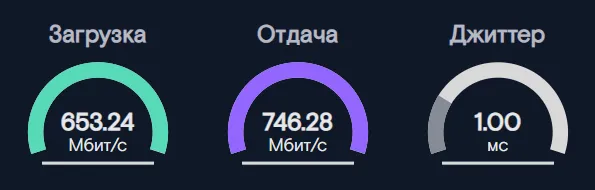
Check your internet speed
First, make sure the issue is actually related to Steam.
If a speed test shows a result significantly lower than your plan's advertised speed, the problem is most likely with your network or internet provider. You can check it using this link
Change the Steam download region
Steam servers are located around the world. Sometimes the nearest region may be overloaded.
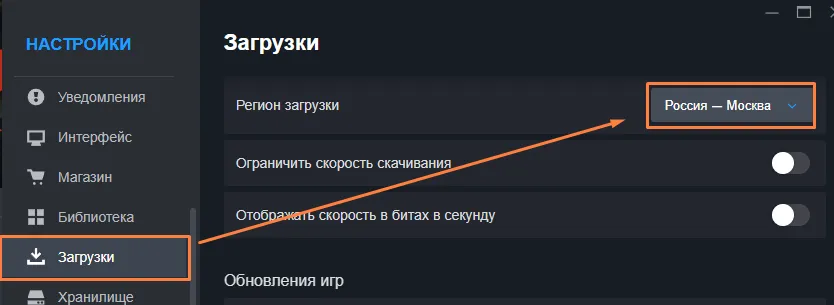
To change it:
- Open Steam.
- Go to Settings.
- Open the “Downloads” section.
- Change the Download Region.
- Restart Steam.
Video guide:
Clear the download cache
A corrupted cache can sometimes reduce download speed.
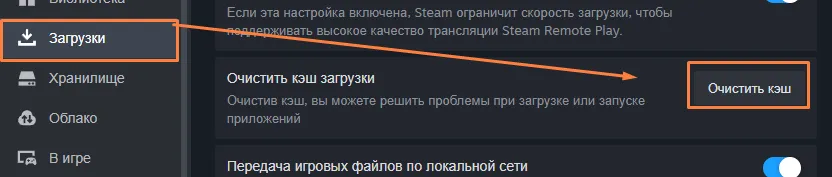
To clear it:
- Open Settings → Downloads.
- Click “Clear Download Cache”.
- Sign in to your account again after Steam restarts.
Close programs that use the internet
While downloading, it is recommended to close:
- browsers with active downloads;
- torrent clients;
- Dropbox;
- Google Drive;
- OneDrive;
- other file synchronization programs.
This allows Steam to use all available network bandwidth.
How to increase Steam download speed on Windows
In addition to the universal methods, Windows users should pay attention to several other factors.
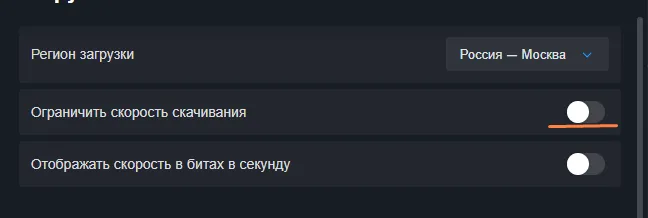
Check the bandwidth limits
Open:
Steam → Settings → Downloads
Make sure that:
- the bandwidth limit is disabled;
- download scheduling is not enabled.
Check your antivirus
Some antivirus programs scan every downloaded file, which can reduce download and installation speed.
If the problem appeared after installing a new antivirus program, try temporarily disabling its download scanning and compare the speed.
Install games on an SSD
Even with a fast internet connection, Steam may have to wait for files to be written to the storage drive.
Games are usually installed and unpacked much faster on an SSD than on an HDD.
How to speed up Steam downloads on macOS
You cannot change process priority on macOS, but there are several other ways to improve download speed.
Close applications that use the internet
Before downloading games, it is recommended to close:
- iCloud Drive;
- Dropbox;
- Google Drive;
- browsers with active downloads.
Check the download settings
Open:
Steam → Settings → Downloads or Steam → Settings → Downloads
Make sure that:
- the bandwidth limit is disabled;
- download scheduling is not enabled.
Use Ethernet
If possible, connect your Mac to the network using an Ethernet adapter. This provides a more stable connection than Wi-Fi.
Check your VPN
If you use a VPN, try temporarily disabling it or selecting a different server.
How to speed up Steam Deck downloads
Steam Deck uses the same Steam client, so many of the methods are similar.
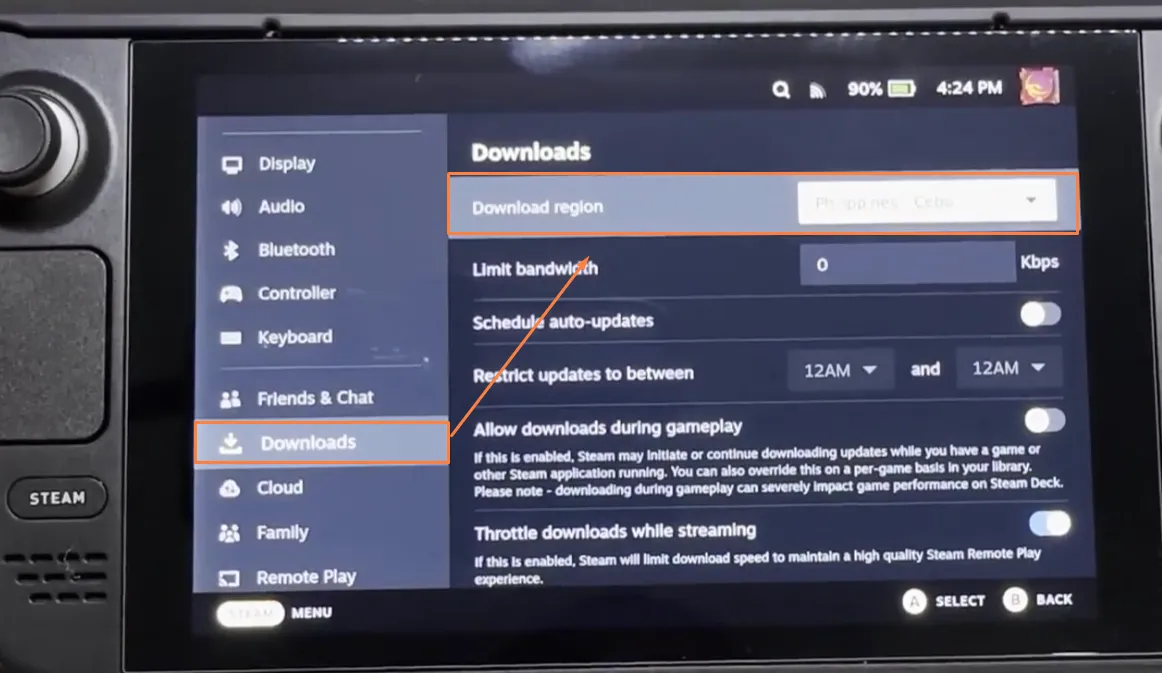
Change the download region
Press the Steam button on your Steam Deck:
Settings → Downloads → Download Region or Settings → Downloads → Download Region
Select your actual region. Restart Steam after changing it.
Use 5 GHz Wi-Fi
Whenever possible, connect to a 5 GHz network. It provides higher speed and is less susceptible to interference.
Do not launch games while downloading
While downloading, Steam Deck simultaneously:
- downloads files;
- unpacks them;
- installs updates;
- compiles shaders.
Playing a game at the same time may reduce the download speed.
Keep free storage space available
It is recommended to keep at least 10–15% of your SSD or memory card free.
If you use a microSD card
Even fast memory cards have lower write speeds than the Steam Deck's internal SSD. Because of this, installing large games may take longer.
FAQ
Why does Steam show a lower speed than my internet provider?
Steam displays speed in MB/s, while internet providers usually advertise speed in Mbps.
For example:
- 100 Mbps ≈ 12.5 MB/s;
- 300 Mbps ≈ 37.5 MB/s;
- 500 Mbps ≈ 62.5 MB/s;
- 1 Gbps ≈ 125 MB/s.
Why does the download speed keep dropping?
During installation, Steam not only downloads files but also unpacks them onto the drive. At this point, the download speed may temporarily decrease, which is normal client behavior.
Why does Steam download only one game slowly?
Sometimes the problem is caused by high server load for a particular game, especially immediately after an update or release. In such cases, the speed usually returns to normal after some time.
Does changing the process priority help?
On Windows 10 and Windows 11, this method can help many users increase download speed if the problem is related to CPU resource allocation. This option is not available on macOS.
Conclusion
If Steam downloads games slowly, you can usually fix the problem yourself. Start with simple steps: check your internet speed, change the download region, and clear the cache. If you use Windows, be sure to try increasing the Steam process priority—it takes less than a minute and often provides a noticeable speed boost. macOS and Steam Deck users should pay attention to download settings, network stability, and storage performance.

How to speed up game loading on Steam: 12 working methods
If your Steam download speed is significantly lower than what your internet provider promises, don't rush to troubleshoot your connection or reinstall the client. In many cases, you can increase the speed in just a couple of minutes by changing a few settings.
This guide covers all working methods for Windows, macOS, and Steam Deck.
Quick solution (Windows 10 and Windows 11)
If you don't want to read the entire article and want to try the most effective method right away, follow these steps:
For many users, the download speed becomes noticeably higher after this, especially when the processor is also busy with other resource-intensive tasks.
If your computer becomes unstable after changing the priority, switch it back to “Normal”.
Why Steam downloads games slowly
A low download speed does not always mean there is a problem with your internet connection. Download speed can be affected by:
Methods that work on Windows, macOS, and Steam Deck
Check your internet speed
First, make sure the issue is actually related to Steam.
If a speed test shows a result significantly lower than your plan's advertised speed, the problem is most likely with your network or internet provider. You can check it using this link
Change the Steam download region
Steam servers are located around the world. Sometimes the nearest region may be overloaded.
To change it:
Video guide:
Clear the download cache
A corrupted cache can sometimes reduce download speed.
To clear it:
Close programs that use the internet
While downloading, it is recommended to close:
This allows Steam to use all available network bandwidth.
How to increase Steam download speed on Windows
In addition to the universal methods, Windows users should pay attention to several other factors.
Check the bandwidth limits
Open:
Steam → Settings → Downloads
Make sure that:
Check your antivirus
Some antivirus programs scan every downloaded file, which can reduce download and installation speed.
If the problem appeared after installing a new antivirus program, try temporarily disabling its download scanning and compare the speed.
Install games on an SSD
Even with a fast internet connection, Steam may have to wait for files to be written to the storage drive.
Games are usually installed and unpacked much faster on an SSD than on an HDD.
How to speed up Steam downloads on macOS
You cannot change process priority on macOS, but there are several other ways to improve download speed.
Close applications that use the internet
Before downloading games, it is recommended to close:
Check the download settings
Open:
Steam → Settings → Downloads or Steam → Settings → Downloads
Make sure that:
Use Ethernet
If possible, connect your Mac to the network using an Ethernet adapter. This provides a more stable connection than Wi-Fi.
Check your VPN
If you use a VPN, try temporarily disabling it or selecting a different server.
How to speed up Steam Deck downloads
Steam Deck uses the same Steam client, so many of the methods are similar.
Change the download region
Press the Steam button on your Steam Deck:
Settings → Downloads → Download Region or Settings → Downloads → Download Region
Select your actual region. Restart Steam after changing it.
Use 5 GHz Wi-Fi
Whenever possible, connect to a 5 GHz network. It provides higher speed and is less susceptible to interference.
Do not launch games while downloading
While downloading, Steam Deck simultaneously:
Playing a game at the same time may reduce the download speed.
Keep free storage space available
It is recommended to keep at least 10–15% of your SSD or memory card free.
If you use a microSD card
Even fast memory cards have lower write speeds than the Steam Deck's internal SSD. Because of this, installing large games may take longer.
FAQ
Why does Steam show a lower speed than my internet provider?
Steam displays speed in MB/s, while internet providers usually advertise speed in Mbps.
For example:
Why does the download speed keep dropping?
During installation, Steam not only downloads files but also unpacks them onto the drive. At this point, the download speed may temporarily decrease, which is normal client behavior.
Why does Steam download only one game slowly?
Sometimes the problem is caused by high server load for a particular game, especially immediately after an update or release. In such cases, the speed usually returns to normal after some time.
Does changing the process priority help?
On Windows 10 and Windows 11, this method can help many users increase download speed if the problem is related to CPU resource allocation. This option is not available on macOS.
Conclusion
If Steam downloads games slowly, you can usually fix the problem yourself. Start with simple steps: check your internet speed, change the download region, and clear the cache. If you use Windows, be sure to try increasing the Steam process priority—it takes less than a minute and often provides a noticeable speed boost. macOS and Steam Deck users should pay attention to download settings, network stability, and storage performance.
Play Assassin's Creed Black Flag Resynced Deluxe Edition and 2000+ Steam games for just 399₽ per month with a subscription.
And if you want to stay up to date with all the updates, read more news, reviews and materials about these games in our blog:
Assassin's Creed Black Flag Resynced Deluxe EditionNo comments yet