In this guide, we'll cover every method of redeeming a Steam key on a PC (Windows and macOS), through the Steam mobile app, and on Steam Deck.
A Steam key is a unique code that lets you add a game or DLC to your Steam library.
It usually consists of 15 characters and looks something like this:
AAAAA-BBBBB-CCCCC
Once successfully redeemed, the game is permanently linked to your Steam account. You can then download it on any device where you're signed in with that account.
How to Redeem a Steam Key on Windows (PC)
This is the easiest and fastest method.
Step 1. Launch Steam
Open the Steam client and sign in to your account.
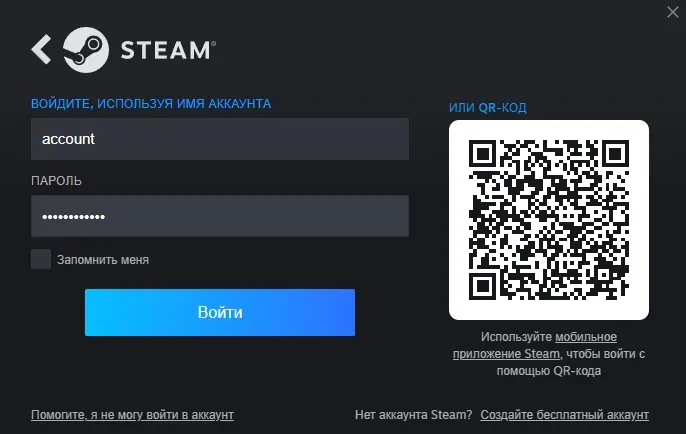
Steam main window
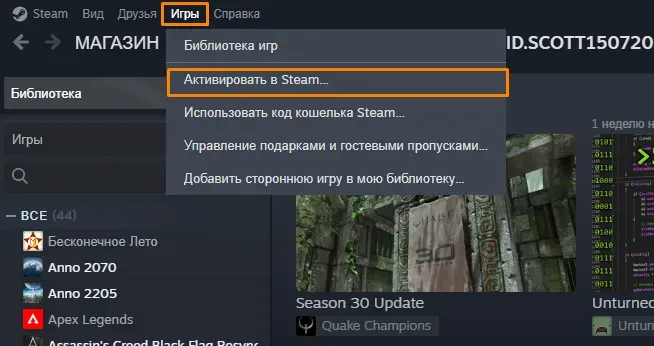
Step 2. Open the activation menu
From the top menu, select:
Games → Activate a Product on Steam...
Step 3. Enter your key
Enter your Steam key and click Continue.
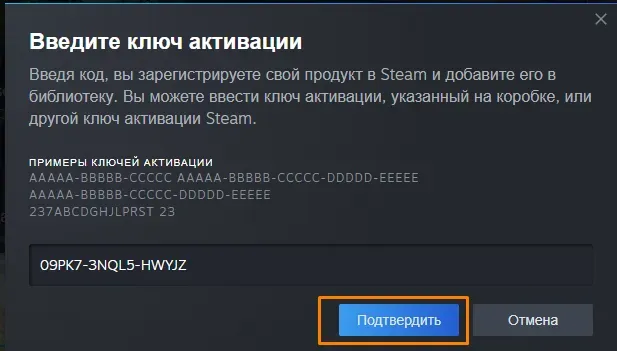
If the key is valid, the game will immediately be added to your library.
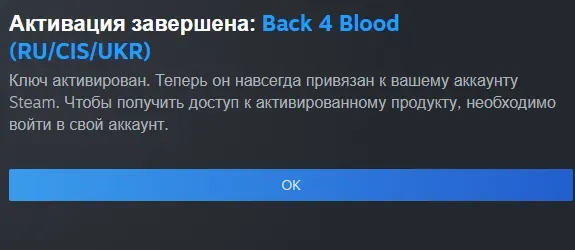
Step 4. Done
After verification, Steam will confirm that the product has been successfully activated.
You can now download the game.
How to Redeem a Steam Key on macOS
The Steam interface on macOS is slightly different from the Windows version. Many users can't find the usual activation option because the menu is located elsewhere.
Step 1. Launch Steam on your Mac
Open the Steam app and sign in to your account.
Step 2. Open the account menu
Click your profile name in the upper-right corner.
From the menu that appears, select:
Account Details
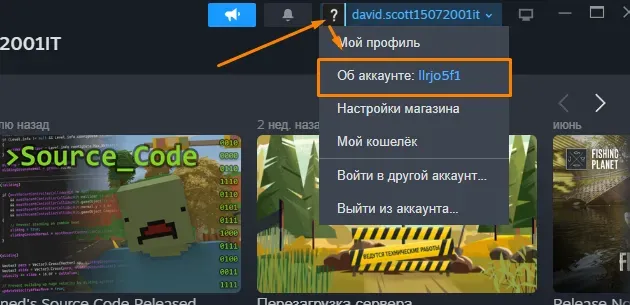
Step 3. Go to the code redemption page
On the Account Details page, find the section:
Store & Purchase History, then select Add funds to your Steam Wallet
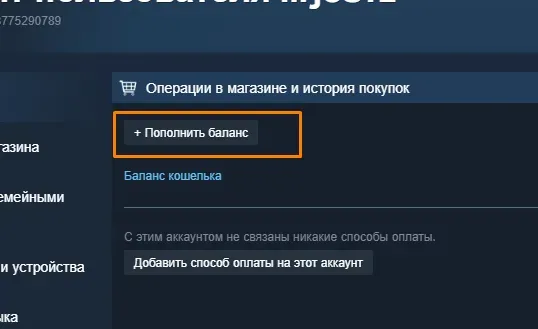
Step 4. Find "Redeem a Steam Gift Card or Wallet Code"
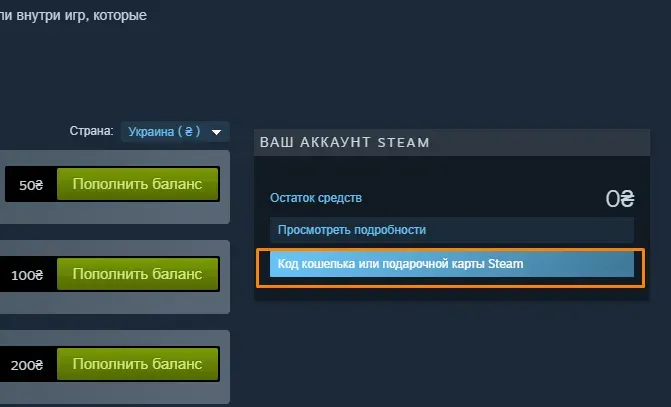
Enter your Steam key and confirm the activation.
After successful verification, the game will automatically appear in your library.
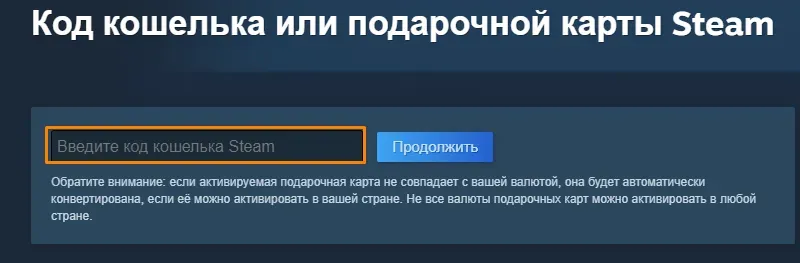
Steam key entry window on macOS
How to Redeem a Steam Key on Your Phone and in the Steam App
Many users try to find the key activation button in the Steam mobile app, but it is not easy to locate.
You can redeem a key directly through the Steam app without using a computer.
How to Redeem a Steam Key in the App
- Open the Steam app on your smartphone.
- Tap the ☰ menu in the bottom-right corner.
- Select the “Support” section at the bottom.
- Scroll down the page.
- Search for “Activate a Product on Steam”.
- Select “Register through a browser” and follow the link.
- Enter the activation key and check the box.
The game will then appear in your library.
If you cannot find these options, watch our video guide
How to Redeem a Steam Key on Steam Deck
Step 1. Open the Steam menu
On your Steam Deck, press the Steam button on the device.
A side menu with the main sections will open.
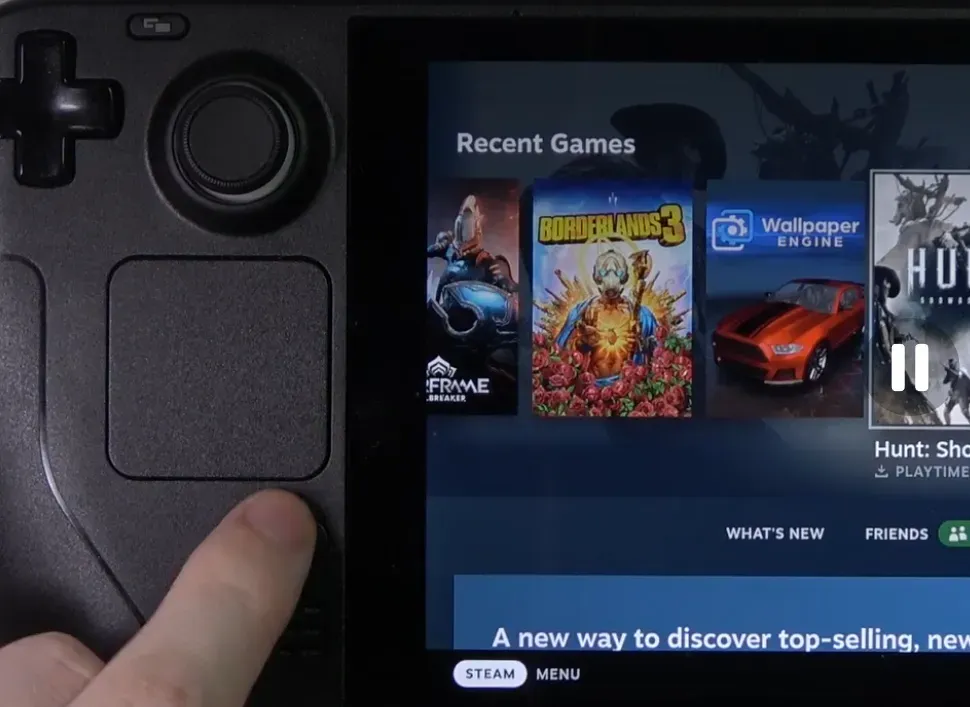
Steam menu on Steam Deck
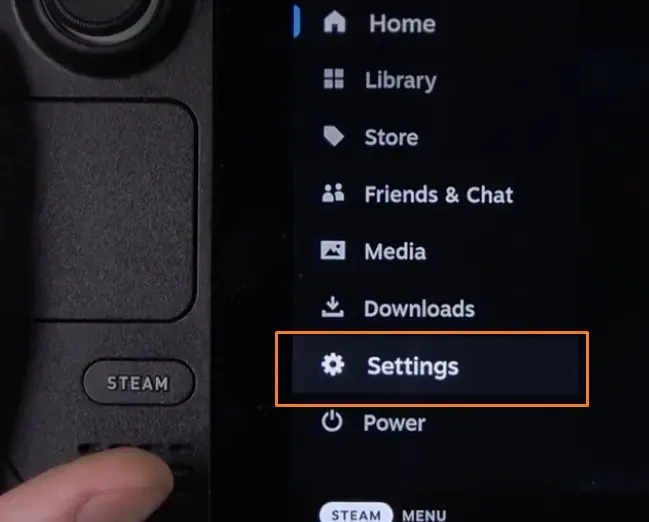
Step 2. Go to Settings
From the menu, select:
Settings
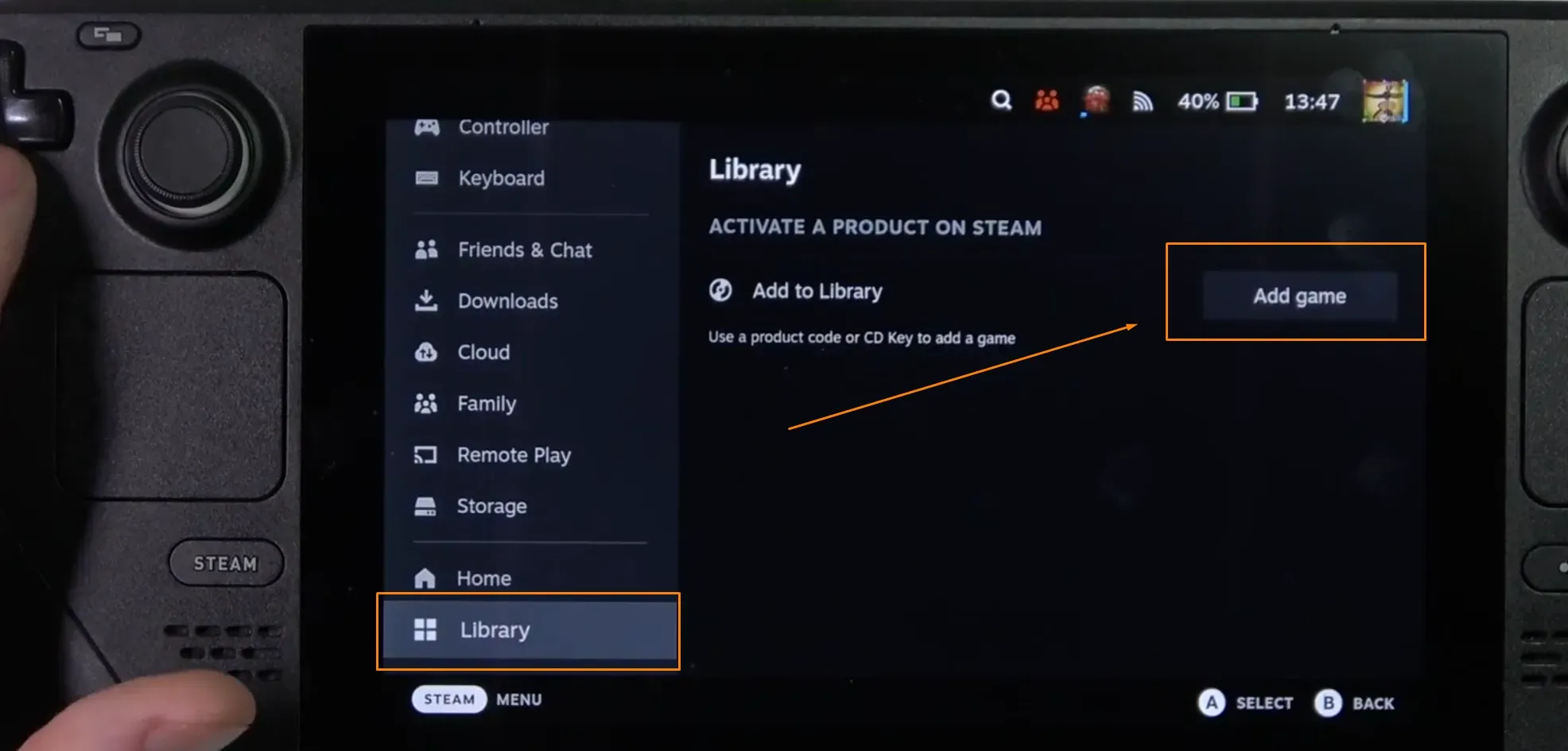
Step 3. Open the key activation section
In Settings, find:
Library > Add Game
Select it.
Step 4. Enter your Steam key
Enter the game code and confirm the activation.
After verification, Steam will add the game to your library.
Steam key entry window on Steam Deck
Why Your Steam Key Won't Activate
Sometimes an error appears after entering the code. Here are the most common reasons.
The Key Has Already Been Redeemed
Each Steam key can only be redeemed once. Once it has been linked to an account, it cannot be used again.
Typing Error
Double-check the characters in your code.
Users often confuse:
- O and 0;
- I and 1;
- B and 8;
- Uppercase I and lowercase l.
Regional Restrictions
Some Steam keys are restricted to specific countries or regions. If your account's region is not supported, Steam will not allow you to redeem the game.
The Game Hasn't Been Released Yet
Pre-order keys may not be redeemable until the game's official release date.
Temporary Steam Issues
During major game launches or seasonal sales, Steam's servers may experience heavy traffic. Try redeeming your key again later.
Frequently Asked Questions
Can I redeem a Steam key through the Steam app?
Yes. Open the Steam mobile app, go to Support, and search for Activate a Product on Steam.
Can I redeem a Steam key on my phone?
Yes. You can do it using either the Steam app or a web browser.
Can I use the same Steam key twice?
No. After the first successful redemption, the code becomes permanently invalid.
Is the game permanently linked to my account?
Yes. Once redeemed, the license remains in your Steam library permanently.
Conclusion
You can redeem a Steam key in several ways: through the Steam client on your PC, the Steam mobile app, a browser on your phone, or a Steam Deck.
The easiest option is to use a computer, but if you only have your smartphone, the required feature is available directly in the Steam app. The key is knowing where to find it: Support → Activate a Product on Steam.
Once the key has been successfully redeemed, the game will appear in your library and be available on every device where you're signed in to your Steam account.

How to Activate a Steam Game Key: PC, Mac, Phone and Steam Deck
In this guide, we'll cover every method of redeeming a Steam key on a PC (Windows and macOS), through the Steam mobile app, and on Steam Deck.
A Steam key is a unique code that lets you add a game or DLC to your Steam library.
It usually consists of 15 characters and looks something like this:
AAAAA-BBBBB-CCCCC
Once successfully redeemed, the game is permanently linked to your Steam account. You can then download it on any device where you're signed in with that account.
How to Redeem a Steam Key on Windows (PC)
This is the easiest and fastest method.
Step 1. Launch Steam
Open the Steam client and sign in to your account.
Steam main window
Step 2. Open the activation menu
From the top menu, select:
Games → Activate a Product on Steam...
Step 3. Enter your key
Enter your Steam key and click Continue.
If the key is valid, the game will immediately be added to your library.
Step 4. Done
After verification, Steam will confirm that the product has been successfully activated.
You can now download the game.
How to Redeem a Steam Key on macOS
The Steam interface on macOS is slightly different from the Windows version. Many users can't find the usual activation option because the menu is located elsewhere.
Step 1. Launch Steam on your Mac
Open the Steam app and sign in to your account.
Step 2. Open the account menu
Click your profile name in the upper-right corner.
From the menu that appears, select:
Account Details
Step 3. Go to the code redemption page
On the Account Details page, find the section:
Store & Purchase History, then select Add funds to your Steam Wallet
Step 4. Find "Redeem a Steam Gift Card or Wallet Code"
Enter your Steam key and confirm the activation.
After successful verification, the game will automatically appear in your library.
Steam key entry window on macOS
How to Redeem a Steam Key on Your Phone and in the Steam App
Many users try to find the key activation button in the Steam mobile app, but it is not easy to locate.
You can redeem a key directly through the Steam app without using a computer.
How to Redeem a Steam Key in the App
The game will then appear in your library.
If you cannot find these options, watch our video guide
How to Redeem a Steam Key on Steam Deck
Step 1. Open the Steam menu
On your Steam Deck, press the Steam button on the device.
A side menu with the main sections will open.
Steam menu on Steam Deck
Step 2. Go to Settings
From the menu, select:
Settings
Step 3. Open the key activation section
In Settings, find:
Library > Add Game
Select it.
Step 4. Enter your Steam key
Enter the game code and confirm the activation.
After verification, Steam will add the game to your library.
Steam key entry window on Steam Deck
Why Your Steam Key Won't Activate
Sometimes an error appears after entering the code. Here are the most common reasons.
The Key Has Already Been Redeemed
Each Steam key can only be redeemed once. Once it has been linked to an account, it cannot be used again.
Typing Error
Double-check the characters in your code.
Users often confuse:
Regional Restrictions
Some Steam keys are restricted to specific countries or regions. If your account's region is not supported, Steam will not allow you to redeem the game.
The Game Hasn't Been Released Yet
Pre-order keys may not be redeemable until the game's official release date.
Temporary Steam Issues
During major game launches or seasonal sales, Steam's servers may experience heavy traffic. Try redeeming your key again later.
Frequently Asked Questions
Can I redeem a Steam key through the Steam app?
Yes. Open the Steam mobile app, go to Support, and search for Activate a Product on Steam.
Can I redeem a Steam key on my phone?
Yes. You can do it using either the Steam app or a web browser.
Can I use the same Steam key twice?
No. After the first successful redemption, the code becomes permanently invalid.
Is the game permanently linked to my account?
Yes. Once redeemed, the license remains in your Steam library permanently.
Conclusion
You can redeem a Steam key in several ways: through the Steam client on your PC, the Steam mobile app, a browser on your phone, or a Steam Deck.
The easiest option is to use a computer, but if you only have your smartphone, the required feature is available directly in the Steam app. The key is knowing where to find it: Support → Activate a Product on Steam.
Once the key has been successfully redeemed, the game will appear in your library and be available on every device where you're signed in to your Steam account.
No comments yet